

acl
The acl plugin authorizes requests by matching authenticated consumer or external-user labels against allow or deny lists. It supports custom rejection responses and extracts labels from flat or nested data.
Consumer-label policies work in APISIX and API7 Gateway. Compatibility with external users depends on the authentication plugin. The Keycloak OIDC examples on this page are specific to API7 Gateway because the APISIX 3.18 openid-connect plugin does not make OIDC user information available to acl.
Examples
The examples show how to authorize consumers by their labels and how API7 Gateway can authorize users by group information returned from an identity provider.
Control Access by Consumer Labels
The following example uses key-auth to authenticate two consumers. The acl plugin allows only the consumer whose org label contains opensource.
Create consumer john with the required organization label:
curl "http://127.0.0.1:9180/apisix/admin/consumers" -X PUT \
  -H "X-API-KEY: ${ADMIN_API_KEY}" \
  -d '{
    "username": "john",
    "labels": {
      "org": "[\"opensource\",\"apache\"]",
      "project": "[\"tomcat\",\"web-server\",\"http,server\"]"
    }
  }'
Create consumer jane with different labels:
curl "http://127.0.0.1:9180/apisix/admin/consumers" -X PUT \
  -H "X-API-KEY: ${ADMIN_API_KEY}" \
  -d '{
    "username": "jane",
    "labels": {
      "org": "apache",
      "project": "gateway,apisix,web-server"
    }
  }'
Create a key-auth credential for john:
curl "http://127.0.0.1:9180/apisix/admin/consumers/john/credentials" -X PUT \
  -H "X-API-KEY: ${ADMIN_API_KEY}" \
  -d '{
    "id": "cred-john-key-auth",
    "plugins": {
      "key-auth": {
        "key": "john-key"
      }
    }
  }'
Create a separate credential for jane:
curl "http://127.0.0.1:9180/apisix/admin/consumers/jane/credentials" -X PUT \
  -H "X-API-KEY: ${ADMIN_API_KEY}" \
  -d '{
    "id": "cred-jane-key-auth",
    "plugins": {
      "key-auth": {
        "key": "jane-key"
      }
    }
  }'
Consumer label values can be scalars, comma-separated strings, or JSON arrays encoded as strings. Create a route that allows consumers whose org label contains opensource:
curl "http://127.0.0.1:9180/apisix/admin/routes/acl-consumer-labels" -X PUT \
  -H "X-API-KEY: ${ADMIN_API_KEY}" \
  -d '{
    "uri": "/get",
    "plugins": {
      "key-auth": {},
      "acl": {
        "allow_labels": {
          "org": ["opensource"]
        }
      }
    },
    "upstream": {
      "type": "roundrobin",
      "nodes": {
        "httpbin.org:80": 1
      }
    }
  }'
❶ Allows a request when the authenticated consumer has an org label whose value matches opensource.
Add the labeled consumers, their credentials, and the protected service to the complete desired-state file used by the deployment:
consumers:
  - username: john
    labels:
      docs-example: acl-consumer-labels
      org: "[\"opensource\",\"apache\"]"
      project: "[\"tomcat\",\"web-server\",\"http,server\"]"
    credentials:
      - name: cred-john-key-auth
        type: key-auth
        config:
          key: john-key
  - username: jane
    labels:
      docs-example: acl-consumer-labels
      org: apache
      project: gateway,apisix,web-server
    credentials:
      - name: cred-jane-key-auth
        type: key-auth
        config:
          key: jane-key
services:
  - name: acl-consumer-labels
    labels:
      docs-example: acl-consumer-labels
    routes:
      - name: acl-consumer-labels
        uris:
          - /get
        plugins:
          key-auth: {}
          acl:
            allow_labels:
              org:
                - opensource
    upstream:
      type: roundrobin
      nodes:
        - host: httpbin.org
          port: 80
          weight: 1
❶ Allows a request when the authenticated consumer has an org label whose value matches opensource.
ADC reconciles the selected resource types as desired state. Preview changes owned by this example and confirm that the diff contains no unintended updates or deletions:
adc diff -f adc.yaml \
  --include-resource-type service \
  --include-resource-type consumer \
  --label-selector docs-example=acl-consumer-labels
Synchronize the reviewed service and consumers, including their nested credentials:
adc sync -f adc.yaml \
  --include-resource-type service \
  --include-resource-type consumer \
--label-selector docs-example=acl-consumer-labelsCreate two labeled consumers and attach the authentication and ACL plugins through a PluginConfig:
apiVersion: apisix.apache.org/v1alpha1
kind: Consumer
metadata:
  namespace: aic
  name: john
  labels:
    org: opensource
spec:
  gatewayRef:
    name: apisix
  credentials:
    - type: key-auth
      name: cred-john-key-auth
      config:
        key: john-key
---
apiVersion: apisix.apache.org/v1alpha1
kind: Consumer
metadata:
  namespace: aic
  name: jane
  labels:
    org: apache
spec:
  gatewayRef:
    name: apisix
  credentials:
    - type: key-auth
      name: cred-jane-key-auth
      config:
        key: jane-key
---
apiVersion: v1
kind: Service
metadata:
  namespace: aic
  name: httpbin-external-domain
spec:
  type: ExternalName
  externalName: httpbin.org
---
apiVersion: apisix.apache.org/v1alpha1
kind: PluginConfig
metadata:
  namespace: aic
  name: acl-consumer-labels
spec:
  plugins:
    - name: key-auth
      config: {}
    - name: acl
      config:
        allow_labels:
          org:
            - opensource
---
apiVersion: gateway.networking.k8s.io/v1
kind: HTTPRoute
metadata:
  namespace: aic
  name: acl-consumer-labels
spec:
  parentRefs:
    - name: apisix
  rules:
    - matches:
        - path:
            type: Exact
            value: /get
      filters:
        - type: ExtensionRef
          extensionRef:
            group: apisix.apache.org
            kind: PluginConfig
            name: acl-consumer-labels
      backendRefs:
        - name: httpbin-external-domain
          port: 80
Apply the configuration to the cluster:
kubectl apply -f acl-gateway-api.yamlCreate two labeled consumers, a domain-based upstream, and a protected route:
apiVersion: apisix.apache.org/v2
kind: ApisixConsumer
metadata:
  namespace: aic
  name: john
  labels:
    org: opensource
spec:
  ingressClassName: apisix
  authParameter:
    keyAuth:
      value:
        key: john-key
---
apiVersion: apisix.apache.org/v2
kind: ApisixConsumer
metadata:
  namespace: aic
  name: jane
  labels:
    org: apache
spec:
  ingressClassName: apisix
  authParameter:
    keyAuth:
      value:
        key: jane-key
---
apiVersion: apisix.apache.org/v2
kind: ApisixUpstream
metadata:
  namespace: aic
  name: httpbin-external-domain
spec:
  ingressClassName: apisix
  externalNodes:
    - type: Domain
      name: httpbin.org
---
apiVersion: apisix.apache.org/v2
kind: ApisixRoute
metadata:
  namespace: aic
  name: acl-consumer-labels
spec:
  ingressClassName: apisix
  http:
    - name: acl-consumer-labels
      match:
        paths:
          - /get
      upstreams:
        - name: httpbin-external-domain
      plugins:
        - name: key-auth
          enable: true
          config: {}
        - name: acl
          enable: true
          config:
            allow_labels:
              org:
                - opensource
Apply the configuration to the cluster:
kubectl apply -f acl-apisix-crd.yamlSend a request as consumer jane:
curl -i "http://127.0.0.1:9080/get" -H "apikey: jane-key"The response should be HTTP/1.1 403 Forbidden because jane does not have the required label.
Send the same request as consumer john:
curl -i "http://127.0.0.1:9080/get" -H "apikey: john-key"The response should be HTTP/1.1 200 OK because john has the required label.
Control Access by OIDC User Groups
This example uses Keycloak groups returned in OIDC user information to authorize browser requests.
info
The OIDC user-information examples are specific to API7 Gateway. Its openid-connect plugin makes authenticated user information available to acl. APISIX 3.18 does not provide this integration between the two plugins.
Configure Keycloak Groups
Complete the Keycloak realm, confidential OIDC client, and user setup in Set Up SSO with Keycloak. Keep Authorization Code and S256 PKCE enabled, and register http://localhost:9080/anything/user/callback as a valid redirect URI.
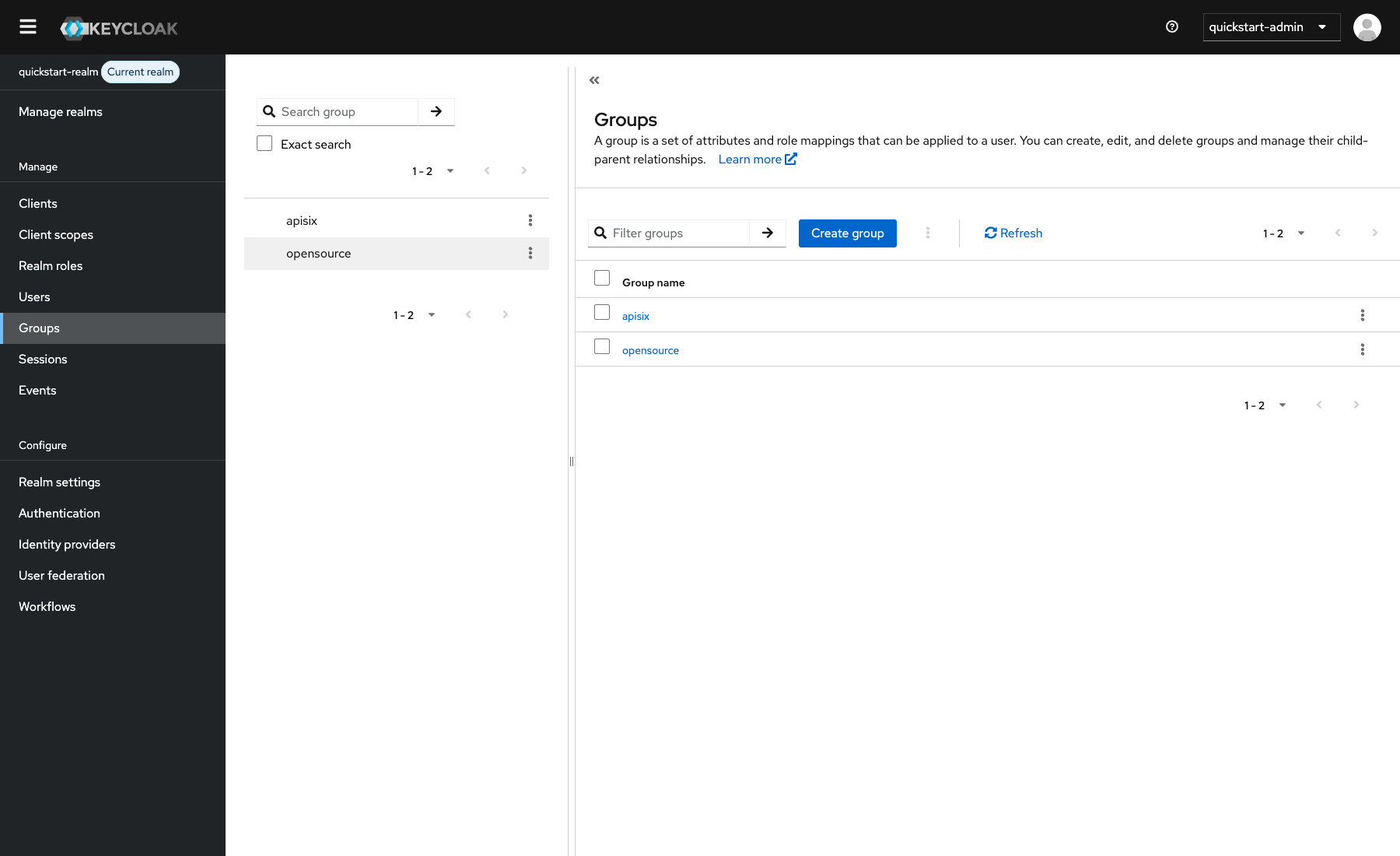
Create two groups and assign them to the test user:
- Select Groups → Create group, create
apisix, and repeat the action foropensource. - Select Users → quickstart-user → Groups → Join Group.
- Select
apisixandopensource, then select Join.
Add the groups to OIDC user information:
-
Select Clients → apisix-quickstart-client → Client scopes.
-
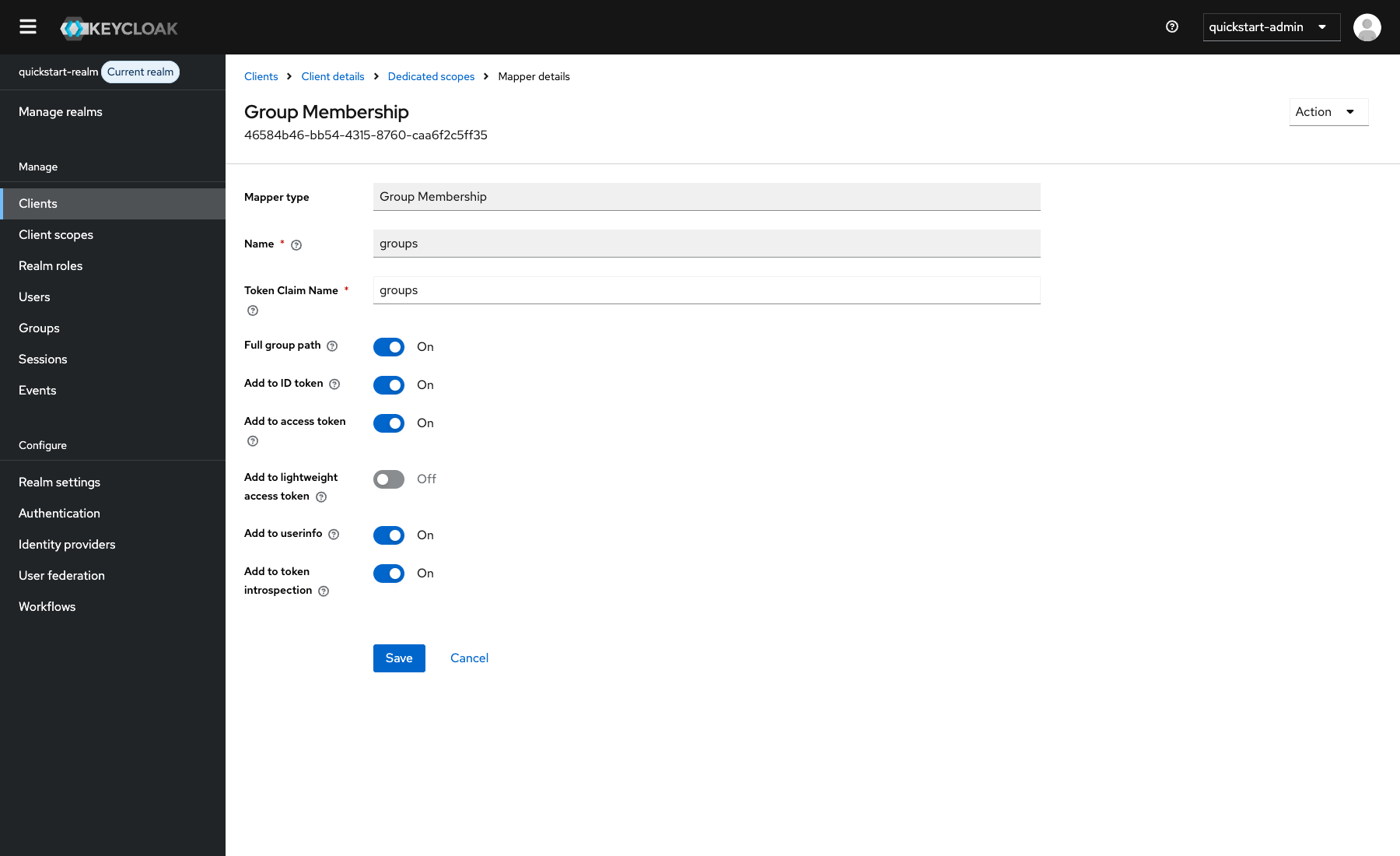
Open apisix-quickstart-client-dedicated, select Add mapper → By configuration, and select Group Membership.
-
Configure the following fields:
Field Value Name groupsToken Claim Name groupsFull group path On Add to userinfo On -
Select Save.
Save the Keycloak client details as environment variables, replacing the example values:
export KEYCLOAK_HOST=replace-with-keycloak-host
export KEYCLOAK_DISCOVERY="http://${KEYCLOAK_HOST}:8080/realms/quickstart-realm/.well-known/openid-configuration"
export KEYCLOAK_CLIENT_ID=apisix-quickstart-client
export KEYCLOAK_CLIENT_SECRET=replace-with-client-secret
export API7_SESSION_SECRET="$(openssl rand -hex 32)"
The gateway container and the browser must be able to reach Keycloak at the same host address. Use HTTPS and store the client and session secrets in a secret-management system for production deployments.
Configure API7 Gateway
Create a protected route that starts browser authentication and allows users in the /apisix Keycloak group.
Create the route through the Admin API:
curl "http://127.0.0.1:9180/apisix/admin/routes/acl-oidc-groups" -X PUT \
  -H "X-API-KEY: ${ADMIN_API_KEY}" \
  -d @- <<EOF
{
  "uri": "/anything/user/*",
  "plugins": {
    "openid-connect": {
      "client_id": "$KEYCLOAK_CLIENT_ID",
      "client_secret": "$KEYCLOAK_CLIENT_SECRET",
      "discovery": "$KEYCLOAK_DISCOVERY",
      "redirect_uri": "http://localhost:9080/anything/user/callback",
      "bearer_only": false,
      "use_pkce": true,
      "scope": "openid profile email",
      "session": {
        "secret": "$API7_SESSION_SECRET"
      },
      "set_access_token_header": false,
      "set_id_token_header": false,
      "set_userinfo_header": false
    },
    "acl": {
      "external_user_label_field": "groups",
      "allow_labels": {
        "groups": ["/apisix"]
      }
    },
    "proxy-rewrite": {
      "headers": {
        "remove": ["Authorization", "Cookie"]
      }
    }
  },
  "upstream": {
    "type": "roundrobin",
    "nodes": {
      "httpbin.org:80": 1
    }
  }
}
EOF
❶ Starts browser authentication and sends an S256 PKCE challenge to Keycloak.
❷ Reads the groups list from the OIDC user information returned by Keycloak.
❸ Allows users whose groups list contains /apisix.
❹ Removes the original authorization header and the entire cookie header, including the gateway session cookie, before proxying the request. Review this setting if the upstream application requires cookies.
Add the protected service to the complete desired-state file used by the deployment:
services:
  - name: acl-oidc-groups
    labels:
      docs-example: acl-oidc-groups
    routes:
      - name: acl-oidc-groups
        uris:
          - /anything/user/*
        plugins:
          openid-connect:
            client_id: "${KEYCLOAK_CLIENT_ID}"
            client_secret: "${KEYCLOAK_CLIENT_SECRET}"
            discovery: "${KEYCLOAK_DISCOVERY}"
            redirect_uri: http://localhost:9080/anything/user/callback
            bearer_only: false
            use_pkce: true
            scope: openid profile email
            session:
              secret: "${API7_SESSION_SECRET}"
            set_access_token_header: false
            set_id_token_header: false
            set_userinfo_header: false
          acl:
            external_user_label_field: groups
            allow_labels:
              groups:
                - /apisix
          proxy-rewrite:
            headers:
              remove:
                - Authorization
                - Cookie
    upstream:
      type: roundrobin
      nodes:
        - host: httpbin.org
          port: 80
          weight: 1
❶ Starts browser authentication and sends an S256 PKCE challenge to Keycloak.
❷ Reads the groups list from the OIDC user information returned by Keycloak.
❸ Allows users whose groups list contains /apisix.
❹ Removes the original authorization header and the entire cookie header, including the gateway session cookie, before proxying the request. Review this setting if the upstream application requires cookies.
Preview changes owned by this example and confirm that the diff contains no unintended updates or deletions:
adc diff -f adc.yaml \
  --include-resource-type service \
  --label-selector docs-example=acl-oidc-groups
Synchronize the reviewed service configuration:
adc sync -f adc.yaml \
  --include-resource-type service \
  --label-selector docs-example=acl-oidc-groups
Replace the Keycloak host, client secret, and session secret placeholders before applying either manifest.
Create an external upstream service, plugin configuration, and protected route:
apiVersion: v1
kind: Service
metadata:
  namespace: aic
  name: httpbin-external-domain
spec:
  type: ExternalName
  externalName: httpbin.org
---
apiVersion: apisix.apache.org/v1alpha1
kind: PluginConfig
metadata:
  namespace: aic
  name: acl-oidc-groups
spec:
  plugins:
    - name: openid-connect
      config:
        client_id: apisix-quickstart-client
        client_secret: replace-with-client-secret
        discovery: http://replace-with-keycloak-host:8080/realms/quickstart-realm/.well-known/openid-configuration
        redirect_uri: http://localhost:9080/anything/user/callback
        bearer_only: false
        use_pkce: true
        scope: openid profile email
        session:
          secret: replace-with-32-byte-session-secret
        set_access_token_header: false
        set_id_token_header: false
        set_userinfo_header: false
    - name: acl
      config:
        external_user_label_field: groups
        allow_labels:
          groups:
            - /apisix
    - name: proxy-rewrite
      config:
        headers:
          remove:
            - Authorization
            - Cookie
---
apiVersion: gateway.networking.k8s.io/v1
kind: HTTPRoute
metadata:
  namespace: aic
  name: acl-oidc-groups
spec:
  parentRefs:
    - name: apisix
  rules:
    - matches:
        - path:
            type: PathPrefix
            value: /anything/user/
      filters:
        - type: ExtensionRef
          extensionRef:
            group: apisix.apache.org
            kind: PluginConfig
            name: acl-oidc-groups
      backendRefs:
        - name: httpbin-external-domain
          port: 80
Apply the configuration to the cluster:
kubectl apply -f acl-oidc-gateway-api.yamlCreate a domain-based upstream and a protected route:
apiVersion: apisix.apache.org/v2
kind: ApisixUpstream
metadata:
  namespace: aic
  name: httpbin-external-domain
spec:
  ingressClassName: apisix
  externalNodes:
    - type: Domain
      name: httpbin.org
---
apiVersion: apisix.apache.org/v2
kind: ApisixRoute
metadata:
  namespace: aic
  name: acl-oidc-groups
spec:
  ingressClassName: apisix
  http:
    - name: acl-oidc-groups
      match:
        paths:
          - /anything/user/*
      upstreams:
        - name: httpbin-external-domain
      plugins:
        - name: openid-connect
          enable: true
          config:
            client_id: apisix-quickstart-client
            client_secret: replace-with-client-secret
            discovery: http://replace-with-keycloak-host:8080/realms/quickstart-realm/.well-known/openid-configuration
            redirect_uri: http://localhost:9080/anything/user/callback
            bearer_only: false
            use_pkce: true
            scope: openid profile email
            session:
              secret: replace-with-32-byte-session-secret
            set_access_token_header: false
            set_id_token_header: false
            set_userinfo_header: false
        - name: acl
          enable: true
          config:
            external_user_label_field: groups
            allow_labels:
              groups:
                - /apisix
        - name: proxy-rewrite
          enable: true
          config:
            headers:
              remove:
                - Authorization
                - Cookie
Apply the configuration to the cluster:
kubectl apply -f acl-oidc-apisix-crd.yamlVerify Group-Based Access
Navigate to http://localhost:9080/anything/user/get in a browser. API7 Gateway redirects you to Keycloak. Sign in as quickstart-user.
After authentication, API7 Gateway reads the /apisix value from the Keycloak user information, allows the request, and forwards it to the upstream. The response should contain fields similar to the following:
{
  "args": {},
  "headers": {
    "Host": "localhost",
    "X-Forwarded-Host": "localhost:9080"
  },
  "method": "GET",
  "url": "http://localhost:9080/anything/user/get"
}
The upstream response should not contain the gateway session cookie, access token, ID token, or user information headers.
To verify rejection, change /apisix under allow_labels.groups to /nonmember in the configuration created above.
Update the route through the Admin API:
curl "http://127.0.0.1:9180/apisix/admin/routes/acl-oidc-groups" -X PATCH \
  -H "X-API-KEY: ${ADMIN_API_KEY}" \
  -d '{
    "plugins": {
      "acl": {
        "allow_labels": {
          "groups": ["/nonmember"]
        }
      }
    }
  }'
Preview the updated complete desired state:
adc diff -f adc.yaml \
  --include-resource-type service \
  --label-selector docs-example=acl-oidc-groups
Synchronize the reviewed change:
adc sync -f adc.yaml \
  --include-resource-type service \
  --label-selector docs-example=acl-oidc-groups
Apply the updated complete manifest using the same Kubernetes API selected above:
kubectl apply -f acl-oidc-gateway-api.yamlIf you selected the APISIX CRD tab, apply acl-oidc-apisix-crd.yaml instead.
Reload the protected route. The response should be HTTP/1.1 403 Forbidden because the authenticated user does not belong to /nonmember.
Control Access by Nested OIDC User Groups
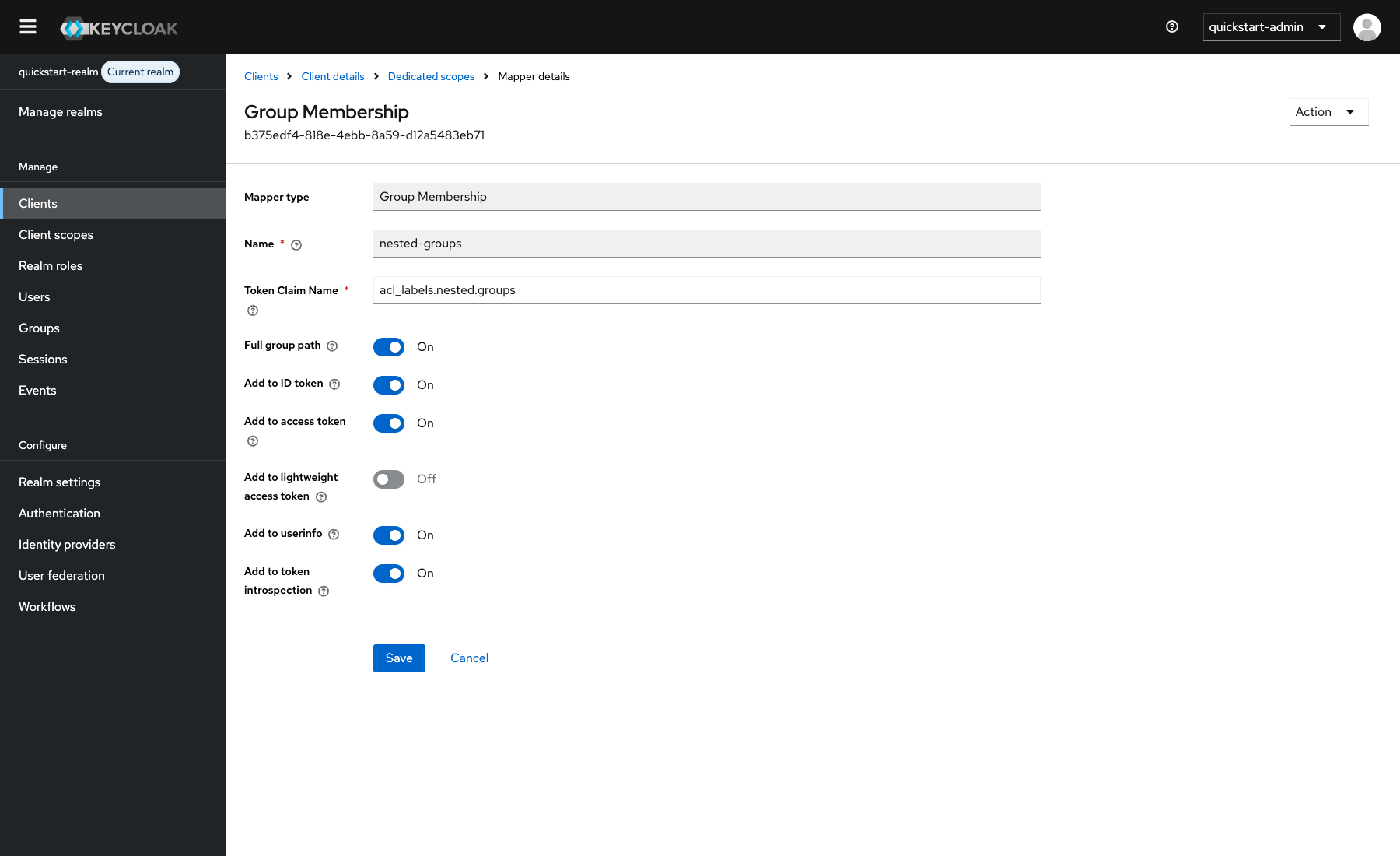
API7 Gateway can also extract labels from nested OIDC user information with a JSONPath expression. This example extends the previous Keycloak configuration by returning the group list at acl_labels.nested.groups.
In the dedicated client scope, create another Group Membership mapper with the following fields:
| Field | Value |
|---|---|
| Name | nested-groups |
| Token Claim Name | acl_labels.nested.groups |
| Full group path | On |
| Add to userinfo | On |
Select Save after configuring the mapper.
Keycloak now returns the group list in a nested object similar to the following:
{
  "acl_labels": {
    "nested": {
      "groups": [
        "/apisix",
        "/opensource"
      ]
    }
  }
}
Update the acl configuration on the existing route to read the nested list.
Update the route through the Admin API:
curl "http://127.0.0.1:9180/apisix/admin/routes/acl-oidc-groups" -X PATCH \
  -H "X-API-KEY: ${ADMIN_API_KEY}" \
  -d '{
    "plugins": {
      "acl": {
        "external_user_label_field": "$.acl_labels.nested.groups",
        "external_user_label_field_key": "groups",
        "external_user_label_field_parser": "table",
        "allow_labels": {
          "groups": ["/apisix"]
        }
      }
    }
  }'
❶ Selects the nested group list with a JSONPath expression.
❷ Uses groups as the key when matching the extracted values against the access control list.
❸ Parses the Keycloak claim as a list. Use the json parser only when the selected value is a serialized JSON string.
❹ Allows users whose extracted group list contains /apisix.
In adc.yaml, replace the existing acl configuration with the following values:
acl:
  external_user_label_field: "$.acl_labels.nested.groups"
  external_user_label_field_key: groups
  external_user_label_field_parser: table
  allow_labels:
    groups:
      - /apisix
❶ Selects the nested group list with a JSONPath expression.
❷ Uses groups as the key when matching the extracted values against the access control list.
❸ Parses the Keycloak claim as a list. Use the json parser only when the selected value is a serialized JSON string.
❹ Allows users whose extracted group list contains /apisix.
Preview the complete desired-state change:
adc diff -f adc.yaml \
  --include-resource-type service \
  --label-selector docs-example=acl-oidc-groups
Synchronize the reviewed configuration:
adc sync -f adc.yaml \
  --include-resource-type service \
  --label-selector docs-example=acl-oidc-groups
Replace the existing acl plugin configuration in the complete manifest with the following values:
external_user_label_field: "$.acl_labels.nested.groups"
external_user_label_field_key: groups
external_user_label_field_parser: table
allow_labels:
  groups:
    - /apisix
Apply the updated complete manifest using the same Kubernetes API selected in the previous example.
Open http://localhost:9080/anything/user/get in a new private browser session and sign in again. A new authentication is required because the gateway session created in the previous example contains the earlier user information. The response should be HTTP/1.1 200 OK, confirming that API7 Gateway extracted and matched the nested Keycloak group list.